Tips on deploying TFS in a multi-domain environment

We have been asked about issues related to TFS in a multi-domain environment sporadically. I’m writing this post to share some basic knowledge in this scenario and wish you can benefit from it. Before you continue, please take a look at Trusts and Forests Considerations for Team Foundation Server.

Tip 1: The domain that the TFSSERVICE account is in needs to be trusted by user domains.

TFS caches user accounts in its own databases. In certain conditions, TFS synchronizes cached accounts with AD. See my previous post TFS service account requires read permission in user domains for more information. For instance, you have a domain group Developers in AD. The Developers group is added to the Contributors group of a team project. You then added a new employee Jim to the Developers group. TFS considers Jim is in Contributors group only after a synchronization.

TFS uses the TFSSERVICE account to synchronize user accounts. If your users accounts are from multiple domains, then the TFSSERVICE account needs to be authenticated by all user domains. 

Tip2: When you add users of another domain to a TFS group, you need to log in to your computer with an account that is trusted by the other domain.

Suppose you log in to your computer with DomainA\user1, and you plan to add DomainB\user2 to the Contributors group of a team project with Team Explorer. Then DomainA needs to be trusted by DomainB. Otherwise, you will not be able to specify DomainB\user2 in the Select Users dialogbox like the below:

SelectUser

Remove old shelvesets

Today a customer asked me how to clean up old shelvesets.The October 2008 release of TFS Power Tool contains Get-TfsShelveset and Remove-TfsShelveset cmdlets. The issue is that if one passes the result of Get-TfsShelveset to Remove-TfsShelveset with pipeline, the owner information is ignored and the Remove-TfsShelveset cmdlet will attempt to look up shelveset created by the current user.

Fortunately, Remove-TfsShelveset recognizes owner in terms of “Remove-TfsShelveset –Shelveset name;domain\alias”. So one workaround is to first obtain a list of shelvesets with Get-TfsShelveset cmdlet, then computer the shelvesetspecs and invoke Remove-TfsShelveset understands. The below script will delete all shelvesets created before 90 days ago.

Get-TfsShelveset -server http://170112m3:8080 -owner * | 
Where-Object -Filter {$_.CreationDate -lt [DateTime]::Now.AddDays(-90)} |
ForEach-Object -Process { Remove-TfsShelveset -server http://170112m3:8080 -Shelveset
($_.Name+";"+$_.OwnerName) }

VS Macro for deleting line numbers

When you copy code from internet and paste into Visual Studio, have you ever faced the trivial task to remove line numbers in the front of each line of code? I just wrote a macro to do this and I’d like to share it with you.

When we past code into Visual Studio, it often looks like this:

MacroForRemovingLinenumber

With this macro, we can remove line numbers very quickly. And the following is the script code. It will set the cursor to the start of current opened document, parse the first 3 characters of each line until the end of the document.

    Sub DeleteLineNumber()
Dim objSel As TextSelection = DTE.ActiveDocument.Selection

objSel.EndOfDocument()
Dim endLine As Integer = objSel.ActivePoint.Line
objSel.StartOfDocument()

For line = 1 To endLine

For bit = 1 To 3
objSel.CharRight(True)
Dim number As Integer
If Integer.TryParse(objSel.Text, number) Then
objSel.DeleteLeft()
End If
Next

objSel.LineDown()
objSel.StartOfLine()
Next

End Sub


To use this macro, you can


  1. Launch Visual Studio


  2. Press ALT+F8 to open Macro Explorer


  3. Expand MyMacros node in Macro Explorer


  4. Right click a module and select ‘New macro’ to create a new macro.


  5. Past in the script.


And there are several ways to run a macro. They are described in How to: Run Macros. If you find any issue or has any comment, please feel free to let me know

Install_Msxml6_Cpu32_Action failed when installing SQL Server 2008

hfare One of my friends was trying to setup a TFS 2010 environment, which requires SQL Server 2008 or above versions. We came across a SQL Server 2008 RTM bug, so I’m posting its description here so that other folks can work around it too.

Symptoms

The installation wizard of SQL Server 2008 fails at the point of starting the SQL Server browser service. In the detailed installation log of SQL Server, which locates in %ProgramFiles%\Microsoft SQL Server\100\Setup Bootstrap\LOG\, there are error messages like the following. See How to: View SQL Server Setup Log Files for more information about log location.

2009-07-01 16:19:19 Slp: Checkpoint: INSTALL_MSXML6_CPU32_ACTION
2009-07-01 16:19:19 Slp: Completed Action: Install_Msxml6_Cpu32_Action, returned False
2009-07-01 16:19:19 Slp: Error: Action "Install_Msxml6_Cpu32_Action" failed during execution.
2009-07-01 16:19:19 Slp: Action "Install_sql_engine_core_shared_Cpu32_Action" will return false due to the following conditions:

Cause

This is a SQL Server 2008 RTM installation bug. The installation wizard has a conflict with MSXML6 SP2 (KB954459).

Workaround

  1. Remove KB954459
  2. Uninstall SQL Server 2008.
  3. Reboot  the computer.
  4. Install SQL Server 2008.

Moving Reporting Service in a TFS 2008 environment

On MSDN, we have documents for moving TFS database, moving Analysis Service database etc. But it’s not covered to move Reporting Service.

After I sent this question to our internal discussion group. I received a couple of replies. Especially thank Aaron Block, Bill Essary and Lakhminder Singh for their great help. Here are the steps to move RS.

  1. Follow KB 842425 to move RS DB to a new instance.
  2. Ensure that you have a login for the TFS Reports account, in case your RS databases are now going to be hosted on a different SQL instance. The login for the RS database should have RSExecRole in Report Server databases (which it should retain when you restore the RS databases.)
  3. Create new data connections for TfsReportsDS and TfsOlapReportsDS. They can be modified via http://ReportingService/Reports.
  4. Run TfsAdminUtil ConfigureConnections command to update setting /ReportsUri and /ReportServerUri.  Consider http://support.microsoft.com/kb/959126 while doing it.
  5. Copy TfsConfigWss.exe to the SharePoint server and run it there to update the reports redirector.
  6. In the installation folder of TFS, there’s a folder named “Microsoft Visual Studio 2008 Team Foundation Server - ENU”. Update the MSIProperty.ini in that folder and change the RS machine name for the VSTF_RS_SERVER property. You just need to give new machine\server name for RS & do not give the instance name. Optionally update the VSTF_RS_REPORTS_URI, & VSTF_RS_REPORTSERVER_URI properties. See Msiproperty.ini File Properties for more information.

Testing WCF web services

This post is for refining my previous post Test WCF web service – Hosted in ASP.NET Development Server. Personally, I prefer Wordpress because it is easy to maintain layout. But all blogs at wordpress.com are censored by the Great Firewall of China (I always want to say the word that has 4 characters, starts with “F” and ends with “K” when talking about it). So I decided to continue to blog in BlogSpot.

I started working in Microsoft Shanghai Global Technical Support Center on May 5th 2008. Fortunately, the company has a private line connecting to the USA thus we can bypass the Great Firewall in the office. My friends and I have dreamed this all our lives. When I wrote the previous post about testing WCF web service, I just had several weeks of experience in VSTT, so forgive me for not having made it easy to read. Since published that post, I have received many feedbacks, thank you all! It’s time to refine the post.

I remember last year the MSDN document at http://msdn.microsoft.com/en-us/library/ms243399.aspx was the same as that in http://msdn.microsoft.com/en-us/library/ms243399(VS.80).aspx. Then Microsoft has changed the terminology about unit test. It is said that hosting a web service and actually invoking it over HTTP in a test method is considered to be “integration test”, while creating an instance of the web service class in a test method and invoking it’s methods is the “unit test”. So I guess the topic of this post is about how to host WCF web services and perform integration testing.

I focus on testing WCF web services that are hosted in ASP.NET Deployment Server (Cassini).

Background about ASP.NET unit testing.

Let me explain some background about ASP.NET unit testing. ASP.NET unit tests can (not always) be executed in the same process as the web server. See Overview of ASP.NET Unit Tests for more information. At run time of executing ASP.NET unit tests, it goes through the following steps:

  1. Backup your web.config to web.config.backup.
  2. Register an HTTP module Microsoft.VisualStudio.TestTools.HostAdapter.Web.HttpModule, which is in %Program Files%\Microsoft Visual Studio 9.0\Common7\IDE\PrivateAssemblies\Microsoft.VisualStudio.QualityTools.HostAdapters.ASPNETAdapter. to the web.config.
  3. Start ASP.NET Deployment Server if it is used.
  4. Send a request to the URL pointed by UrlToTest attribute of your test method.
  5. The registered Microsoft.VisualStudio.TestTools.HostAdapter.Web.HttpModule is triggered by the web server. The module subscribes the PageLoad event of the requested page. When PageLoad event is fired, it loads the test assembly in to the web server process and execute the test method.
  6. Restore the web.config and delete web.config.backup after tests complete.

ASP.NET Deployment Server is started when running a unit test if one of the following 2 conditions is meet:

  1. AspNetDeploymentServer attribute is specified.
    This attributes tells VS to start Cassini before executing the test method. Both AspNetDeploymentServer and AspNetDeploymentServerHost expects a physical path to the web application. In a team environment, the web site is usually located in different directories in different computers. The workaround is to use environment variables. See Testing Web Sites and Web Services in a Team Environment for more information. 
  2. UrlToTest and HostType and  AspNetDeploymentServerHost attributes are all specified.
    UrlToTest attribute is required if HostType attribute is set to “ASP.NET”. The combination of the 3 attributes let VS know ASP.NET Deployment Server should be started and the test method should be executed in the same process as the web server.

When testing web services, we usually want to invoke the web services from a proxy and it’s not necessary to execute test methods in the same process as the web server. Therefore, we don’t need to UrlToTest, HostType and AspNetDeploymentServerHost attributes.

Testing WCF web services hosted in ASP.NET Deployment Server

I go through the process of creating a WCF project and add a test method to demonstrate this scenario. Several sentences here are copied from http://msdn.microsoft.com/en-us/library/ms243399(VS.80).aspx.

  1. Create a WCF project in VS via File->New->Project->Visual C#->Web->WCF Service Application.
  2. Generate unit tests against the Web service in the standard way for generating unit tests. For more information, see How to: Generate a Unit Test.
  3. Use svcutil to generate WCF web service proxy.
    1. Right click the Service1.svc in the WCF project in Solution Explorer and select View in Browser.
    2. Run svcutil http://localhost:52747/Service1.svc /config:app.config /out:Service1Proxy.cs /language:C# to generate proxy and config file. Please replace the URL of Service1.svc to that was displayed in the address bar of the browser in #1.
    3. Add Service1Proxy.cs and app.config to the test project.
  4. Remove the attribute HostType, UrlToTest and AspNetDeploymentServerHost for the generated test method.
  5. Add the AspNetDevelopmentServerAttribute attribute to the unit test. The arguments for this attribute class point to the site of the Web service and name the server. For more information, see Ensuring Access to ASP.NET Development Server.
  6. Change the test method to use the generated proxy class to invoke the web service and add the redirection logic. The test class will look like the following.
DownloadIcon sample project
I also paste some code here to ease reverences.

WcfWebServiceHelper.cs

using System;
using System.Reflection;
using System.ServiceModel.Description;
using System.ServiceModel;
using Microsoft.VisualStudio.TestTools.UnitTesting;

namespace TestProject1
{
class WcfWebServiceHelper
{
public static bool TryUrlRedirection(object client, TestContext context, string identifier)
{
bool result = true;
try
{
PropertyInfo property = client.GetType().GetProperty("Endpoint");
string webServer = context.Properties[
string.Format("AspNetDevelopmentServer.{0}", identifier)].ToString();
Uri webServerUri = new Uri(webServer);
ServiceEndpoint endpoint = (ServiceEndpoint)property.GetValue(client, null);

EndpointAddressBuilder builder = new EndpointAddressBuilder(endpoint.Address);
builder.Uri = new Uri(
endpoint.Address.Uri.OriginalString.Replace(
endpoint.Address.Uri.Authority, webServerUri.Authority));

endpoint.Address = builder.ToEndpointAddress();

}
catch (Exception e)
{
context.WriteLine(e.Message);
result = false;
}
return result;
}

}
}


Test Method


        [TestMethod()]
[AspNetDevelopmentServer("WcfService1",
"C:\\Users\\Administrator\\Desktop\\TfsRoot\\BuildTest\\Main\\MyServices\\WcfService1")]
public void GetDataTest()
{
Service1Client target = new Service1Client();
Assert.IsTrue(WcfWebServiceHelper.TryUrlRedirection(target,TestContext,"WcfService1"));
int value = 0;
string expected = "You entered: 0";
string actual;
actual = target.GetData(value);
Assert.AreEqual(expected, actual);
}

How to: Initialize a WorkItem instance for the changed work item in WorkItemChangedEvent handler

Recently I’ve been asked about several questions that need to initialize a WorkItem instance in the web service handler for WorkItemChangedEvent. So I paste a sample code here to ease the future references.

One thing to note is that in order to query work items, the identity for the app pool that hosts the web service in IIS must has property permission granted. In TFS 2005 and 2008, work item permissions are based on area and iteration. See Team Foundation Server Permissions for more information.

using System;
using System.Diagnostics;
using System.Web.Services;
using System.Web.Services.Protocols;
using System.Xml;
using Microsoft.TeamFoundation.Client;
using Microsoft.TeamFoundation.WorkItemTracking.Client;

namespace EventHandler
{
/// <summary>
/// Summary description for Service1
/// </summary>
[WebService(Namespace = "http://tempuri.org/")]
[WebServiceBinding(ConformsTo = WsiProfiles.BasicProfile1_1)]
[System.ComponentModel.ToolboxItem(false)]
// To allow this Web Service to be called from script, using ASP.NET AJAX, uncomment the following line.
// [System.Web.Script.Services.ScriptService]
public class WorkItemChangedEventHandler : System.Web.Services.WebService
{

[SoapDocumentMethod(
Action = "http://schemas.microsoft.com/TeamFoundation/2005/06/Services/Notification/03/Notify",
RequestNamespace = "http://schemas.microsoft.com/TeamFoundation/2005/06/Services/Notification/03")]
[WebMethod]
public void Notify(string eventXml)
{
try
{
string tfsUrl = "http://TFS_AT:8080";
TeamFoundationServer tfs = TeamFoundationServerFactory.GetServer(tfsUrl);

var workItemId = GetWorkItemID(eventXml);

var wis = (WorkItemStore)tfs.GetService(typeof(WorkItemStore));
var wi = wis.GetWorkItem(workItemId);


}
catch (Exception e)
{
var eventSource = "My WorkItemChangedEvent Handler";
var logName = "Application";
var machineName = "."; //local computer.

if (!EventLog.SourceExists(eventSource, machineName))
{
var eventObj = new EventSourceCreationData(eventSource, logName);
EventLog.CreateEventSource(eventObj);
}

var eventLog = new EventLog(logName, machineName, eventSource);
eventLog.WriteEntry(e.Message);
}
}

private int GetWorkItemID(string eventXml)
{
var doc = new XmlDocument();
doc.LoadXml(eventXml);
var path = "/WorkItemChangedEvent/CoreFields/IntegerFields/Field[ReferenceName='System.Id']/NewValue";
var node = doc.SelectSingleNode(path);

var id = int.Parse(node.InnerText);
return id;
}

}
}

"TFSServerScheduler" Service does not start automatically at system startup

Recently I have been working on a case about Visual Studio Team Foundation Server Task Scheduler service. A customer reported that in a single server TFS 2008 deployment,  when TFS server is rebooted, TFSServerScheduler doesn’t start automatically. Instead, there’s an error message in Windows Event Log:

Source: "TFS Scheduler"

TF53010: The following error has occurred in a Team Foundation component or
extension:
Date (UTC): 20.05.2009 08:16:35
Machine: xxx
Application Domain: TFSServerScheduler.exe
Assembly: Microsoft.TeamFoundation.Common, Version=9.0.0.0, Culture=neutral,
PublicKeyToken=b03f5f7f11d50a3a; v2.0.50727
Process Details: 
Process Name: TFSServerScheduler 
Process Id: 2920 
Thread Id: 3092 
Account name: domain\user

Detailed Message: Unable to connect to the remote server

The interesting thing is that when you try to start TFSServerScheduler service manually, it starts successfully and everything works fine!

After some digging, we eventually came to Fun with the TFSServerScheduler service. In that post, it says TFSServerScheduler depends on SQL Server service in a single server TFS deployment. If SQL Server starts slower than TFSServerScheduler, then TFSServerScheduler will crash and exit.

In my case however, it is a bit different. it turns out TFSServerScheduler also depends on World Wide Web Publishing Service (W3SVC). You can verify this by stopping W3SVC, then restart TFSServerScheduler. TFSServerScheduler can be started but will exit after several seconds. The same error message as I posted will be added to Windows Event Log.

You might have already figured out the workaround. We can configure TFSServerScheduler to depend on W3SVC. One approach is to run command: sc config TFSServerScheduler depend= W3SVC. Please note that there’s a space between the equal sign and W3SVC. Then open the property dialog for TFSServerScheduler and check if its dependency is configured correctly.

I can’t say for sure which services are actually dependent by TFSServerScheduler. But I believe we can find them out if we meet similar issues in the future.

Have attended my first event in TeamSystemLive

TeamSystemLive is a great social network created by Chris Tullier. There are a lot of people who use TFS every day there. Until now, I only know several professional TFS administrators in China. TeamSystemLive gives me a great many of opportunities to talk with TFS experts and exchange knowledge.

Today I attended my first event in TeamSystemLive. It was TeamSystemLive.com Chat: WiX and Team Build Together at Last which is presented by William Bartholomew. William gave us an excellent demonstration about how to build an MSI package with WIX. He will  give us another 3 talks about team build. Please refer to May is Build Month on TeamSystemLive.com for more information. Don’t miss them!

How to: Modify a project portal site template

We have received a few requests for how to modify the default team project settings recently. So I’m writing this post to share the steps of modifying a site template.

As we already know, when we create a new team project, the corresponding portal in SharePoint is also created. The portal is created with the SharePoint template referenced in the process template. After we download a process template, we can open the WssTasks.XML. Then we will find a <site> element which specifies the SharePoint site template and language id. Until now, the SharePoint site template can not be edited in the Process Editor from TFS power tool.

When TFS is installed, the SharePoint site templates for MSF for Agile and MSF for CMMI are uploaded to SharePoint. You can find these template in %ProgramFiles%\Microsoft Visual Studio 2008 Team Foundation Server\Tools\Templates. The below steps are for how to modify the portal site template. The MSFAgile.stp is for WSS 2.0 and MSFAgile30.stp is for WSS 3.0.

Configure an existing team portal and save the portal as an template.

  1. Open an existing team portal and modify settings such as time zone.
  2. In the portal, click Site Actions->Site Settings->Save site as template.
  3. Since the process template already contains the default document libraries, so we uncheck the Include Content checkbox.
  4. Click OK and MyTemplate is created in Site Template Gallery.
  5. Go to Site Actions->Site Settings->Site templates and download MyTemplate.stp to a local folder.

Sometimes, you need to modify the MyTemplate.stp manually. Skip these steps if you don’t need to do that.

  1. Install Microsoft Cabinet Software Development Kit. The portal template for a team project is just cab files. We can use the CABARC.EXE in the SDK to extract and recreate the template files.
  2. Login the TFS server and navigate to %ProgramFiles%\Microsoft Visual Studio 2008 Team Foundation Server\Tools\Templates.
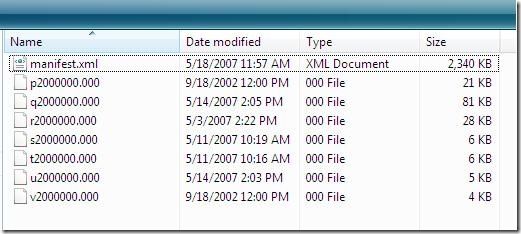
  3. Find the template you want to modify. Make a back up of it and change the extension from .stp to .cab. Then you can open the .cab file with Windows Explorer. Copy all contents to a folder, say C:\TemplateExtract.

    TemplateExtract2

  4. Modify the settings in the manefist.xml based on your requirement and save.
  5. Recreate the .stp template file with CABARC.EXE. For example: CABARC N “C:\MyTemplate.stp C:\TemplateExtract\*.*”, then MyTemplate.stp should be created in C: drive.

    addTemplate2

Upload the portal site template to SharePoint.

  1. List the global template with stsadm -o enumtemplates. stsadm.exe is usually located in %ProgramFiles%\common files\microsoft shared\web server extensions\12\bin. Remember the tile of the site template you want to modify.

    enumtemplate

  2. If you want to add a new template, you can skip this step. If you want to update and existing site template, you need to first delete the old template with stsadm –o deletetemplate and then upload the template with the same title. For example: stsadm –o deletetemplate –title VSTS_MSFAgile.

    deleteTemplate

  3. Add the template with stsadm –o addtemplate command. For example: stsadm –o addtemplate –filename C:\MyTemplate.stp –title VSTS_MSFAgile. Since a process template references the site template by template title. If you are replacing an existing template, make sure the title is the same as displayed when run enumtemplates in the previous step.

    AddTemplate4

  4. Run iisreset to restart the IIS.

Finally, you can create a new team project to test the newly uploaded site template.

How to: Enable tracing of TFS add-ins for Excel and MS Project

TFS provides abilities to manage work items in Excel and MS Project. When you experience unexpected behaviors while managing work items in Excel or MS Project, one approach to diagnose this issue is to enable tracing. The trace log can give us more information and probably contains clues.

  1. Create a file EXCEL.exe.config to enable tracing of Excel (WINPROJ.exe.config for MS Project).
  2. Add the below content to the config file and save.
    <?xml version ="1.0"?>
    <configuration>
    <system.diagnostics>
    <trace autoflush="true" indentsize="4">
    <listeners>
    <add name="myListener" type="System.Diagnostics.TextWriterTraceListener"
    initializeData="c:\Logs\Excel.log" />
    </listeners>
    </trace>
    <switches>
    <add name="General" value="4" />
    </switches>
    </system.diagnostics>
    </configuration>


  3. Go to the folder where EXCEL.exe or WINPROJ.exe locate. For Office 2007, they are in %\ProgramFiles%\Microsoft Office\Office12.


  4. Copy the EXCEL.exe.config or WINPROJ.exe.config there.


  5. Restart Excel or MS Project. When you use functions in the TFS add-in, trace logs should be created.

How to: Upgrade TFS data tier to SQL Server 2008

Many customers asked about how to upgrade the TFS DT to SQL Server 2008. I’m writing this post  in the hope of that other TFS administrators can get a quick help. The following are steps to upgraded the TFS DT:

  1. Apply TFS 2008 SP1 if you haven’t applied it yet. TFS 2008 SP1 is a must in order to work with SQL Server 2008.
  2. Follow the document How to: Upgrade to SQL Server 2008 (Setup) to upgrade the database.
  3. Open the installation folder of TFS, find the configuration file Web Services\Warehouse\web.config.
  4. Modify the assembly binding redirection of Microsoft.AnalysisServices from <bindingRedirect oldVersion="9.0.242.0" newVersion="9.0.242.0"/> to <bindingRedirect oldVersion="9.0.242.0" newVersion="10.0.0.0"/>.
  5. Perform the step #4 for the Toos\SetupWarehouse.exe.config and Toos\TfsAdminUtil.exe.config.
  6. If some reports from the default MSF for Agile or MSF for CMMI template don’t work after the database upgrade, you might want to look at Issues with TFS 2008 built-in reports using SQL Server Reporting Services 2008

Test ID should be used when running MSTest.exe with /unique switch

The MSDN document MSTest.exe Command-Line Options describes the usage of MSTest. It has a /unique switch. If you follow the demo in the document to use /unique switch, you might get the error message “Test MethodTest1 is not unique. It maps to more than one test.”.

In Visual Studio, a test method has an ID. To get the test ID, you can

  1. Select a test in the Test View window.
  2. Press F4 to open the Property Window.
  3. Find the ID field in the Property Window.

For unit test, the test ID is made up of namespace.class.testmethod. For coded web test, the ID is made up of namespace.class. When MSTest.exe is run with /unique switch, test ID should be passed to /test switch. For example: MSTest  /testcontainer:TestProject1.dll /test:TestProject1.Class1Test.TestMethod1 /unique.

Can’t synchronize TFS warehouse after upgrading SQL Server to 2008

A few days ago, I upgraded the database of my TFS from SQL Server 2005 to 2008. Then the warehouse of TFS can’t be synchronized. Finally, I got time to troubleshoot this issue today.

Symptoms

I tried to invoke the web service http://TfsServer:8080/Warehouse/v1.0/warehousecontroller.asmx?op=Run to synchronize the warehouse, then an 6 error message were logged in the Windows Event Log immediately in TFS server. One of them looks like this:

Detailed Message: Cube processing runtime error: \r\nMicrosoft.TeamFoundation.Server.AnalysisServiceConnectionException: Error encountered when creating connection to Analysis Services. Contact your Team Foundation Server administrator. ---> Microsoft.AnalysisServices.ConnectionException: Cannot connect to Analysis Services version '10.0.1600.22'.
   at Microsoft.AnalysisServices.Server.Connect(String connectionString, String sessionId)
   at Microsoft.AnalysisServices.Server.Connect(String connectionString)
   at Microsoft.TeamFoundation.Warehouse.OlapCreator.GetServerEdition()
   --- End of inner exception stack trace ---
   at Microsoft.TeamFoundation.Warehouse.OlapCreator.GetServerEdition()
   at Microsoft.TeamFoundation.Warehouse.OlapCreator.CommonInit()
   at Microsoft.TeamFoundation.Warehouse.OlapCreator..ctor(String serverName, String databaseName, String relationalConnectionString)
   at Microsoft.TeamFoundation.Warehouse.AdapterScheduler.RunCubeProcess()

The other 5 error messages were similar to this one. I list their error message without call stacks here so that people can reach to this post so no matter which error message is used as the keyword to search, .

  1. Detailed Message: Failed to load adapter Microsoft.VisualStudio.TestTools.WarehouseAdapter.Adapter. Exception Info: \n Microsoft.TeamFoundation.Server.AnalysisServiceConnectionException: Error encountered when creating connection to Analysis Services. Contact your Team Foundation Server administrator. ---> Microsoft.AnalysisServices.ConnectionException: Cannot connect to Analysis Services version '10.0.1600.22'.
  2. Detailed Message: Failed to load adapter Microsoft.TeamFoundation.WorkItemTracking.Adapter.Adapter. Exception Info: \n Microsoft.TeamFoundation.Server.AnalysisServiceConnectionException: Error encountered when creating connection to Analysis Services. Contact your Team Foundation Server administrator. ---> Microsoft.AnalysisServices.ConnectionException: Cannot connect to Analysis Services version '10.0.1600.22'.
  3. Detailed Message: Failed to load adapter Microsoft.TeamFoundation.VersionControl.Adapter.VCAdapter. Exception Info: \n Microsoft.TeamFoundation.Server.AnalysisServiceConnectionException: Error encountered when creating connection to Analysis Services. Contact your Team Foundation Server administrator. ---> Microsoft.AnalysisServices.ConnectionException: Cannot connect to Analysis Services version '10.0.1600.22'.
  4. Detailed Message: Failed to load adapter Microsoft.TeamFoundation.Build.Adapter.TeamBuildAdapter. Exception Info: \n Microsoft.TeamFoundation.Server.AnalysisServiceConnectionException: Error encountered when creating connection to Analysis Services. Contact your Team Foundation Server administrator. ---> Microsoft.AnalysisServices.ConnectionException: Cannot connect to Analysis Services version '10.0.1600.22'.
  5. Detailed Message: Failed to load adapter Microsoft.TeamFoundation.Warehouse.CommonStructureAdapter. Exception Info: \n Microsoft.TeamFoundation.Server.AnalysisServiceConnectionException: Error encountered when creating connection to Analysis Services. Contact your Team Foundation Server administrator. ---> Microsoft.AnalysisServices.ConnectionException: Cannot connect to Analysis Services version '10.0.1600.22'.

Assessments

The error message indicates that TFS can’t connect to the Analysis Service after upgraded. I then lunched the SQL Server Management Studio 2008 and successfully connected to the Analysis Service. So the Analysis Service should work fine. Since the issue began occurring after upgraded SQL Server. TFS might still use OM from SQL Server 2005 to connect to SQL Server 2008.

To verify my guess, I restarted the IIS by running iisreset command and checked assembly binding information with fslogvw. In the tool, I found an item for binding assembly Microsoft.AnalysisServices for w3wp.exe, which is the IIS worker process of TFS web site. Here are the log:

LOG: Redirect found in application configuration file: 9.0.242.0 redirected to 9.0.242.0.
LOG: Post-policy reference: Microsoft.AnalysisServices, Version=9.0.242.0, Culture=neutral, PublicKeyToken=89845dcd8080cc91
LOG: Found assembly by looking in the GAC.

LOG: Binding succeeds. Returns assembly from C:\Windows\assembly\GAC_MSIL\Microsoft.AnalysisServices\9.0.242.0__89845dcd8080cc91\Microsoft.AnalysisServices.dll.
LOG: Assembly is loaded in default load context.

Obviously, the OM from old SQL Server 2005 was used.

Solution

In the installation folder of TFS, I navigated to Web Services\Warehouse, There’s a web.config there. After TFS 2008 SP1 is applied, it adds an assembly binding redirection for Microsoft.AnalysisServices. At the time when I installed TFS 2008 SP1, the SQL Server was not upgraded yet. So the Microsoft.AnalysisServices was directed to the version 9.0.242.0, which is from SQL Server 2005.

On my another machine that SQL Server 2008 was already installed when applying the TFS 2008 SP1. This assembly was directed to 10.0.0.0. So the assembly redirection is supposed to be manually updated after upgrading the SQL Server.

In the web.config, I redirected this assembly to 10.0.0.0 and restarted IIS. The problem was resolved.

      <dependentAssembly>
<assemblyIdentity name="Microsoft.AnalysisServices"
publicKeyToken="89845dcd8080cc91"
culture="neutral" />
<bindingRedirect oldVersion="9.0.242.0" newVersion="10.0.0.0"/>
</dependentAssembly>


[EDIT] The SetupWarehouse command also utilizes the assembly Microsoft.AnalysisServices when rebuilding the TFS cube. So after upgrading to SQL Server 2008, you will also want to configure the SetupWarehouse.exe.config in the same manner.

Microsoft social platform updates

Last weekend, Microsoft social platform have been updated with significant changes. The new platform was written with ASP.NET MVC. The performance is much faster then the previous one. Here are the links to each social website.

  1. http://social.expression.microsoft.com/search
  2. http://social.msdn.microsoft.com/search
  3. http://social.technet.microsoft.com/search
  4. http://social.expression.microsoft.com/forums
  5. http://social.microsoft.com/forums
  6. http://social.msdn.microsoft.com/forums
  7. http://social.technet.microsoft.com/forums
  8. http://social.microsoft.com
  9. http://social.expression.microsoft.com
  10. http://social.msdn.microsoft.com
  11. http://social.technet.microsoft.com
  12. http://services.social.microsoft.com

Encounter TF220065 error during TFS installation

Yesterday, I helped an internal customer to troubleshoot a TFS installation issue. A search of TF220065 on google doesn’t reveal similar scenarios. So I’m blogging this problem and solution here. The following is the screenshot we got when installing TFS.

TF220065

In my case, TFS is a dual server deployment. The Reporting Service was installed on the data tier. By default, TFS installation wizard “assumes” Reporting Service is installed on the application tier and is not configured. We configured the Reporting Service in the data tier and modified the following 3 properties as described in Msiproperty.ini File Properties. Then the problem was resolved.

Troubleshooting team project creation error

To create a new team project in TFS is a complex process. Many community members reported issues when create a new team project. We already solved most of them in the forums. In this blog, I’m trying to organize some commonly seen errors. Hope it can help if you encounter issues when create a team project.

What does the Team Explorer do when creating a new team project

Based on configurations in the selected process template, when create a team project, Team Explorer will usually

  1. Create team project level groups and set the initial Access Control List (ACL).
  2. Import work item types and queries.
  3. Create initial work items.
  4. Create a team portal in the SharePoint and upload default documents and process guidance.
  5. Create a folder with the team project name in the Reporting Service and upload default reports.

How to find more information

Getting more information is useful to narrow down the cause. Here are 3 steps to find more information.

  1. Find the exception messages in the project creation log. At the end of the new team project wizard, there’s a link to the log file. Typically, the log locates in %TEMP% folder in the client computer. It is named in the form of VSTS_TeamProjectCreation_<Time>. The exception messages should point us a general direction.
  2. Run a  healthy check with Best Practice Analyzer (BPA) from TFS Power Tool. in the October release of this power tool, we added rules simulating project process. You need to install BPA on the TFS machine. Fore more information about required permission in Reporting Service and SharePoint, please refer to How to: Set Team Foundation Server Administrator Permissions.
  3. Check the Windows event log in TFS application tier. When the exceptions are thrown by TFS web services, they are usually get logged.

Some error messages you might see

  1. TF30207: Initialization for plugin "Microsoft.ProjectCreationWizard.WorkItemTracking" failed
    Exception Message Remedy
    TF201072: A user or group could not be found. Verify that the users and groups used in your work item type definition have been added to Team Foundation Server. KB 958433
    TF30045: The instance information has not been configured or is not available for this Team Foundation Server.  Please contact your Team Foundation Server administrator. This is a general message. It often indicates the work item subsystem is not working. Please check the Windows Event Log on TFS application tier to find more information.

    TF26173: Team Foundation could not connect to the application tier. Check that you have a network connection and that the Team Foundation Server is available. If the problem persists, contact your Team Foundation Server administrator.

    Replies in this thread.
  2. TF30207: Initialization for plugin "Microsoft.ProjectCreationWizard.Reporting" failed

    Exception Message Remedy
    TF30224: Failed to retrieve projects from the report server. Please check that the SQL Server Reporting Services Web and Windows services are running and you have sufficient privileges for creating a project.

    There might be 3 causes:

    1. Team Explorer uses your current Windows account to connect to Reporting Service. Try using IE to open the web service url http://ReportingService/ReportServer and report manager url http://ReportingService/Reports. The expected behavior is that you can open those web sites without manually specify any credentials.
    2. If the data tier is using SQL Server 2008, then you need to install Visual Studio 2008 SP1 on the client machine. The SP1 contains updates for Team Explorer.
    3. Insufficient permissions in Reporting Service. Please check How to: Set Team Foundation Server Administrator Permissions.

    TfsReportDS not defined to the SQL Server Reporting Services Server. Team Foundation needs to be repaired or reinstalled.

    KB 957202.
  3. TF30207: Initialization for plugin "Microsoft.ProjectCreationWizard.Portal" failed

    Exception Message Remedy
    TF30262: Error occurred while creating document library : Security retrying ...

    Unable to connect to the remote server
    When this error occurs, the SharePont site collection for the team project portal should have already been created. But Team Explorer can’t connect to the portal to upload documents.

    The portal is hosted in a SharePoint web application. So make sure the firewall doesn’t block the port of the web application.
    TF30162: Task "SharePointPortal" from Group "Portal" failed

    The language id specified in the process template does not exist on the WSS server.
    Check Brian Harry’s blog TF30162: Task "SharePointPortal" from Group "Portal" failed.
    Windows SharePoint Services version 2 templates are not supported in this version of the product. A process template references a SharePoint site template. After the process template is downloaded, you can find a <site> element in WSSTasks.xml which points a site template title. This issue happens when the site template is for WSS 2.0 and you TFS is using WSS 3.0.

    You can use stsadm –o deletetemplate to delete the old template and upload the 3.0 version with the same tile by stsadm –o addtemplate. The 3.0 version of templates are located in Toos\Templates in TFS installation folder with a ‘30’ suffix. 

If this blog doesn’t help in your scenario, you can contact Team Foundation Server – Administration forum for further troubleshooting.

Encounter TF224004 when start build service

Today, I configured my TFS to use HTTPS protocol. After configured one build agent to to use HTTPS, I got  TF224004 when trying to start the build service.

Detailed Message: TF224004: The Visual Studio Team Foundation Build service failed to start because NT AUTHORITY\NETWORK SERVICE does not have the required access permissions for address https://161792m2:9191/Build/v2.0/AgentService.asmx. Exception Message: HTTP could not register URL https://+:9191/Build/v2.0/AgentService.asmx/. Your process does not have access rights to this namespace (see http://go.microsoft.com/fwlink/?LinkId=70353 for details). (type AddressAccessDeniedException)

“Network Service” is the service account of the build service. After reading Steven Cheng’s reply at http://www.devnewsgroups.net/group/microsoft.public.dotnet.framework/topic49734.aspx, I figured out I was hitting the same issue.

Solution to this problem

  1. On the build agent machine, open command window.
  2. Run netsh http show urlacl. In the result, I noticed url https://161792m2:9191/Build/v2.0/AgentService.asmx was assigned a user other than “Network Service”.
    Previous
  3. Run netsh http add urlacl url=https://+9191/Build/v2.0/AgentService.asmx user="NT AUTHORITY\NETWORK SERVICE"
  4. Run netsh http show urlacl again to verify the urlacl has been set correctly.
    After

After adding the URLACL for “Network Service” account, the build service could be started up successfully.

Correct way of applying Visual Studio 2008 SP1

Visual Studio family contains many products. The VS 2008 SP1 released a few months ago have fixes for all products in the family. An incorrect order of applying the service pack usually lead VS products into an inconsistent state. The most common issue I see is that a particular method/type in a VS assembly can't be found.

In Visual Studio 2008 SP1, we have fixes for

  1. Visual Studio IDE.
  2. Team Explorer.
  3. Load Test Controller.
  4. Load Test Agent.

See KB 950264 for detailed description.

When applying the SP1, only fixes for already installed products are applied. For example, you might have installed Visual Studio 2008, then applied the SP1, latter you installed the load test controller on the same machine, then fixes for the test controller would not be applied unless you install the SP1 again.

So, the correct order of applying the SP1 is to install the SP1 at the latest. If you applied the SP1 and later installed a new product in the above list, then you should apply the SP1 again.

TFS service account requires read permission in user domains

When TFS is deployed in an active directory domain environment, it makes use of windows accounts stored in domain. TFS uses the service account, usually TfsService, to read SID, email, display name and other account information from AD where TFS users belong to. As you can see here, the service account requires read permission in all TFS user domains.

Account synchronization condition
The synchronization happens

  1. When TFS starts up
  2. When an account is added to a TFS group via Team Explorer
  3. When TFS task scheduler fires a synchronization every one hour

Multiple domain consideration
In organizations that TFS users may come from multiple domains, we can use a service account from a domain that is trusted by all other domains. When using Visual Studio to add users to TFS, we can log on the domain that is trusted by other domains so that we can list all domain accounts.

How to deal with TF200035?
Many customers reported TF200035: One or more errors occurred when Team Foundation Server attempted to synchronize with the following Active Directory identity error. It means TFS can't read account information from active directory for some TFS users. Please check if the account specified in this error message actually exists in the domain. We can also use "TfsSecurity /server:TfsServer /imx domain\account" to simulate TFS synchronizing an account or group. If TFS can retrieve account information for an existing TFS user, it will display something like the following:


More resources to read
Trusts and Forests Considerations for Team Foundation Server.